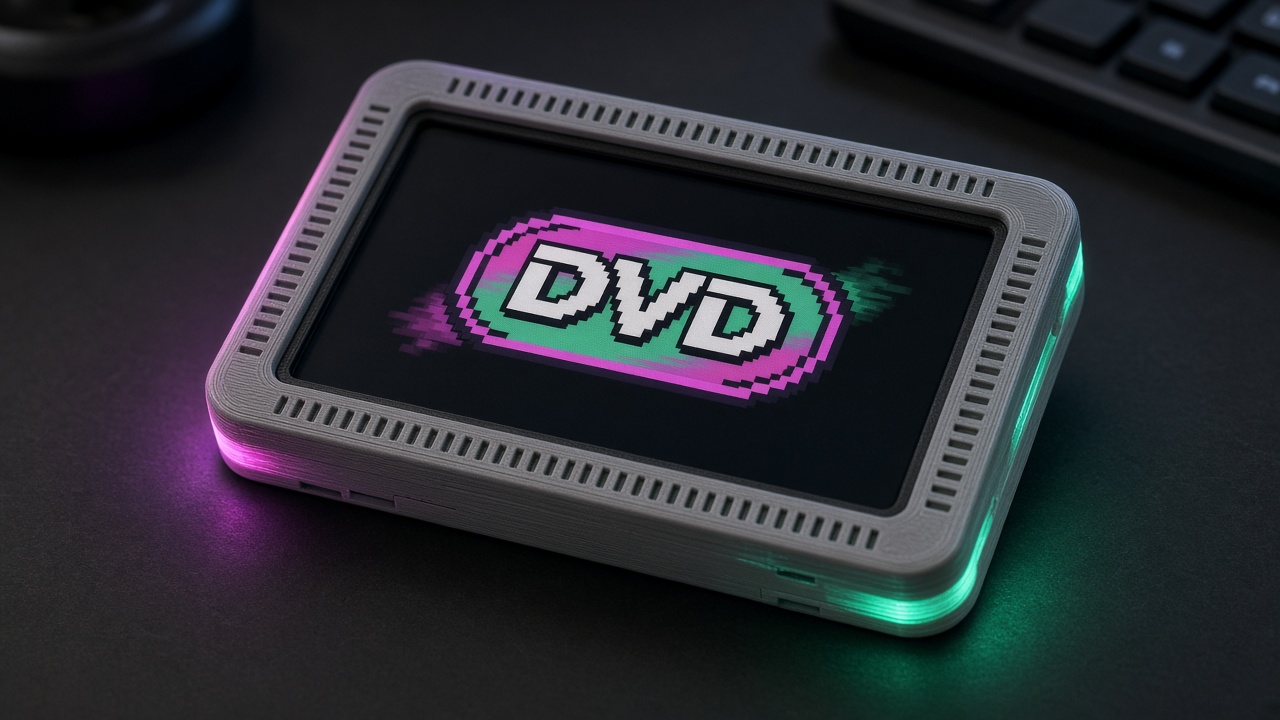
Flash writes a precompiled image over USB-C in Chrome or Edge. The .ino below is the source — you do not need Arduino IDE unless you want to change the sketch.
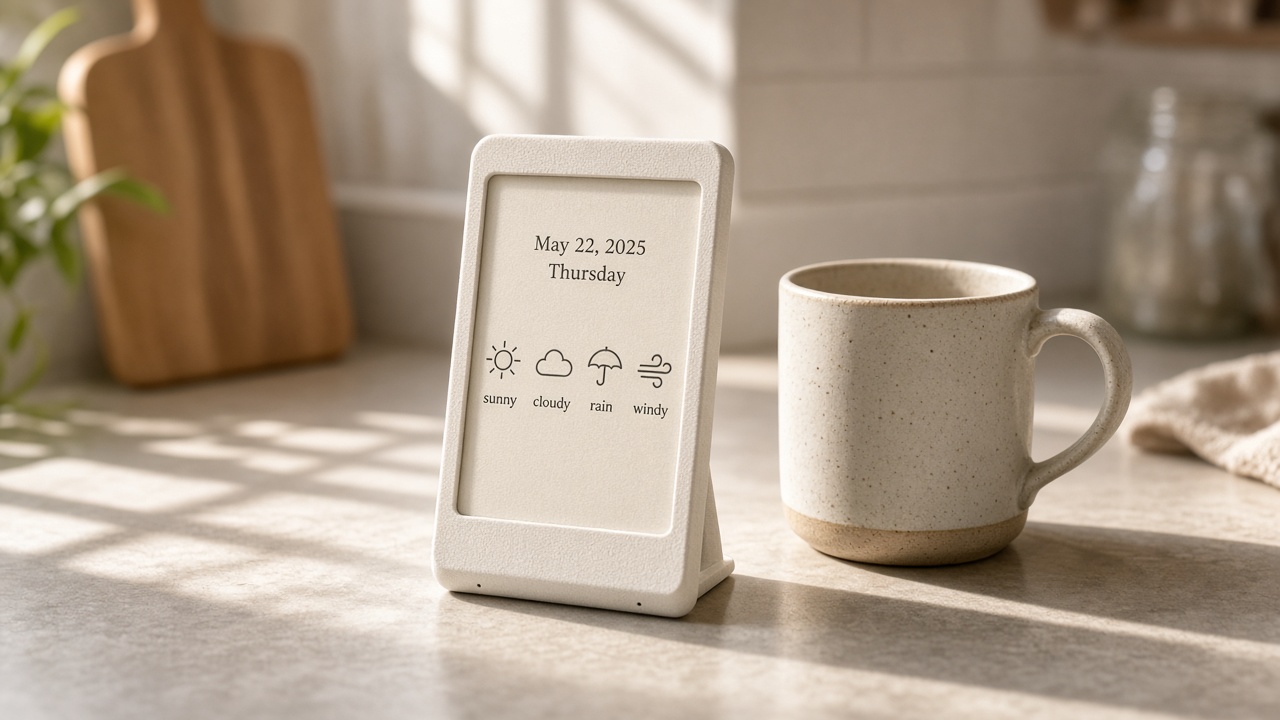
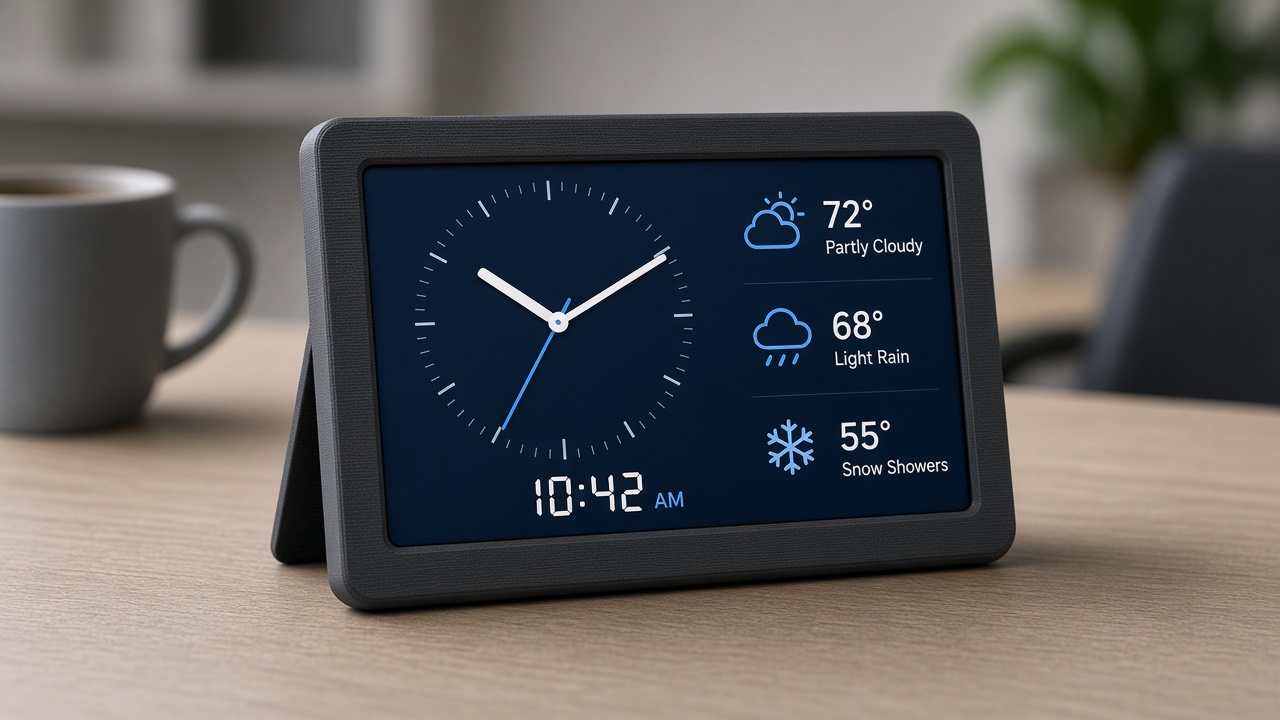
A morning paper brick: date, weather, to-dos, and an optional calendar. The screen is too small for a whole newspaper, so the brick pages. Short BOOT is next page. Hold BOOT rotates. Every 8 seconds it advances while things are working.
RGB: warm white while fetching, green when ready, red on error. You will use that as a status light while you debug Wi-Fi.
What you will learn
How a device learns the date from the internet (NTP).
How a weather API returns a week of highs and lows as JSON.
Why API keys are secrets, and why the published key is a fake.
How to page content when the screen cannot hold everything.
How a program refuses to join a placeholder Wi-Fi name.
Meet the silhouette slab
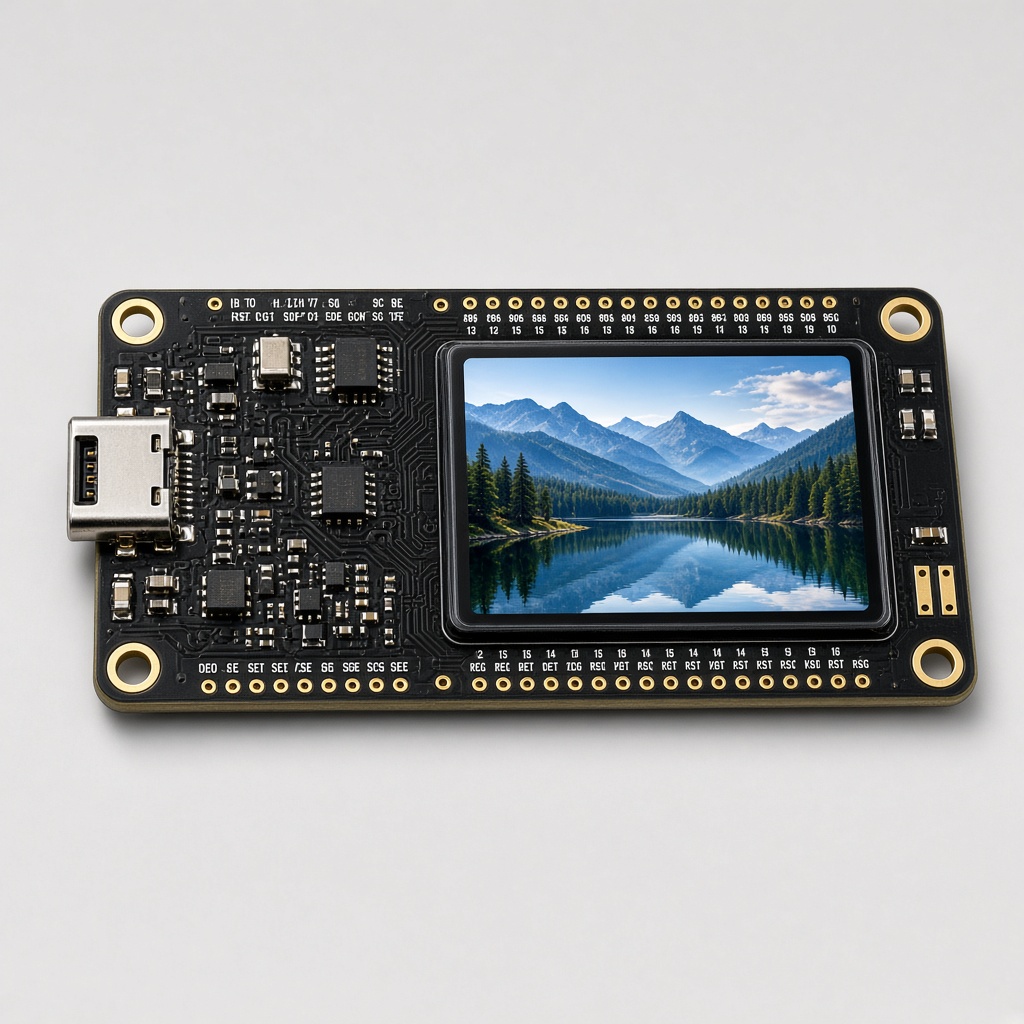
This project uses the Waveshare ESP32-C6-LCD-1.47 — a slim rectangle with a 1.47 inch screen.
A 172×320 color screen. You can turn it portrait or landscape in software.
No touch. No motion sensor. Interaction is the BOOT button (a short press vs a ~0.7 second hold).
A single RGB LED on the board (GPIO8) that can glow any color.
Wi-Fi that is 2.4 GHz only.
Keep the backlight at 50%. Full brightness can leave a heat spot on the panel.
The program is a .ino file (Arduino-style C++). You will not memorize it. You will learn the ideas, then see the small piece of code that does each job.
Note
Word to know — GPIO. It means “general purpose input/output” — a pin the chip can turn on or read. BOOT is GPIO9. The RGB LED is GPIO8. You do not rewire anything; the board already connected those pins.
The finished gadget
Daily briefing brick on Silhouette slab (ESP32-C6).
Build it
1
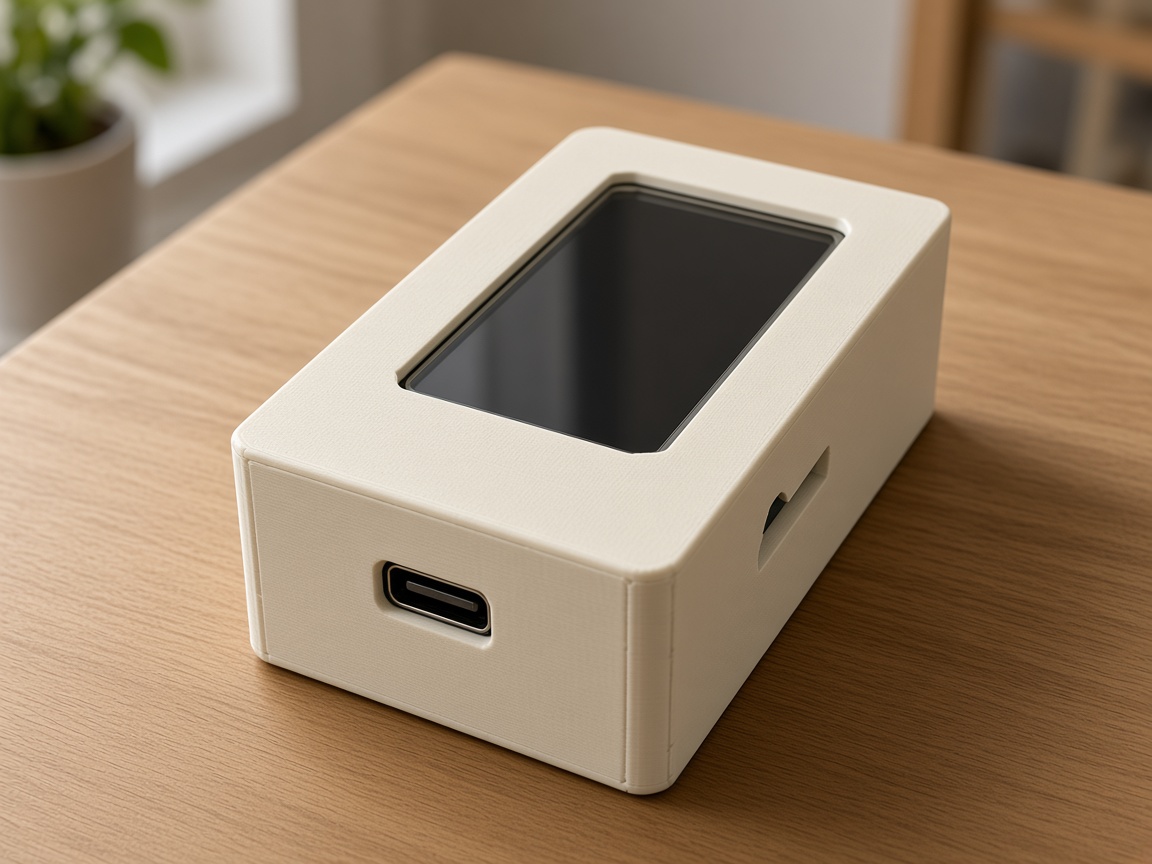
Print the brick
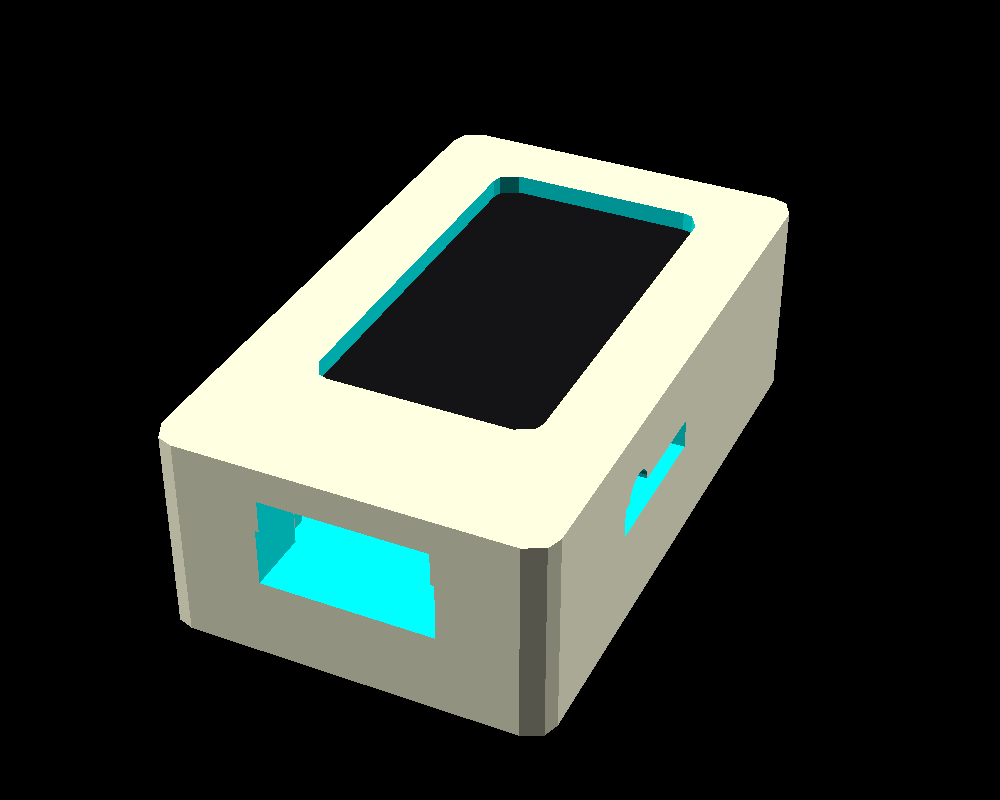
Natural or cream PLA, 0.2 mm. It should look like stacked paper, not a robot.
2
Fill in Wi-Fi (needed for weather and time)
Replace YOUR_WIFI_SSID_HERE / YOUR_WIFI_PASSWORD_HERE with a 2.4 GHz network. Set WEATHER_LAT / WEATHER_LON and the timezone string. Leave the Google key as a placeholder unless a teacher sets up a classroom key.
3
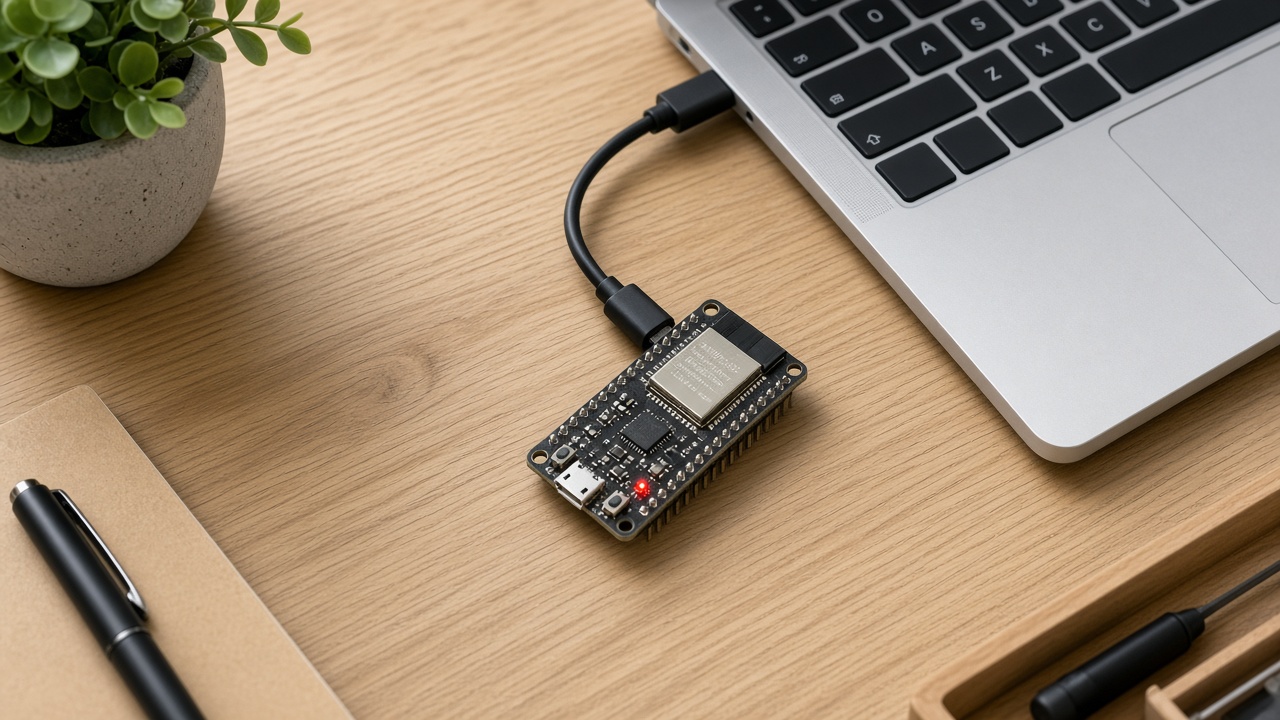
Flash the slab
Flash means copy the program onto the chip. Easiest path: use the attached daily-briefing.bin with the on-page Flash to board button (Chrome or Edge, USB-C). To change the code later: Arduino IDE → ESP32C6 Dev Module, USB CDC On Boot, 115200 — or unzip platformio.zip next to the .ino and run python3 -m platformio run -t upload. Keep the backlight at 50%. This slab has no touch screen and no motion sensor — you press BOOT (the button on GPIO9) to interact.
4
Read the morning
Short BOOT pages DATE → WEATHER → TO DO → CALENDAR. Hold BOOT rotates. refresh on serial asks the internet again.
Warning
The published sketch will not join Wi-Fi until you edit the two strings. That is a safety feature, not a bug.
Lesson 1 — The internet knows what day it is
Phones look effortless. This slab has to ask. After Wi-Fi works, it calls NTP (pool.ntp.org) and applies TZ_POSIX (a timezone recipe). Then “Monday” and “Sep 18” are just formatting that date into text.
If Wi-Fi fails, there is no honest date. The error banner is the program telling you the truth.
Lesson 2 — A week of weather is an array
Open-Meteo can send daily highs, lows, and weather codes — not just “now.” JSON arrays are lists: temperature_2m_max[0] is today, [1] is tomorrow. The weather page prints a few of those slots.
A weather code is an integer that means clear / rain / snow. The program maps the number to a short English word. That is a lookup table again — same skill as DELAY → red on the airport board.
Lesson 3 — API keys are keys. Do not publish them.
A calendar page needs permission from Google. That permission is an API key — a password for a program. If you paste a real key into a public project, strangers can spend your quota.
This firmware checks: if the key is still YOUR_GOOGLE_API_KEY_HERE, skip calendar and say so on screen. That is how grown-up software treats secrets: detect the placeholder, do not pretend it worked.
Refuse the fake network and the fake key
daily-briefing.ino
// Wi-Fi: if the SSID is still YOUR_WIFI_SSID_HERE, do not WiFi.begin()
// Calendar: if the key is still YOUR_GOOGLE_API_KEY_HERE, skip that page
Lesson 4 — Pages are a carousel
The panel is 172×320. A full morning slip does not fit. So the program stores four pages and a current index. Short BOOT does index = (index + 1) % 4 — modulo wrap, the same math as a clock face. Auto-advance is just “if 8 seconds passed and we are READY, do that plus-one.”
Try this
Leave the Wi-Fi placeholder, flash, and read the red banner. Then fill it in and watch the LED go green.
Change TZ_POSIX if you are not in Central time. Watch the date page.
Edit the baked-in to-do list — those are just strings in the sketch.
Talking to the board (serial)
Your computer can talk to the board over the same USB-C cable. That text chat is called serial. In Arduino IDE or PlatformIO, open the Serial Monitor at 115200 baud (that number is the speed — both sides must match).
Type a word, press Enter, and the board answers. Try help first. Then try status.
Commands for this project:help · status · refresh · page · rotate
Tip
If you see nothing, pick the right USB port, set 115200, and press the board’s RESET once. On a Mac the port often looks like /dev/cu.usbmodem….
The complete program (reference)
Everything above taught the ideas. Below is the full sketch so you can search, copy, and tinker. It is long on purpose — that is a real program, not a toy snippet. Scroll inside the box. The downloadable .ino is the same file.
Wi-Fi and API fields are placeholders (YOUR_WIFI_SSID_HERE, YOUR_WIFI_PASSWORD_HERE). Never paste a real password into a public copy.